Tag: Docker

  • Crowdsec – Collaborative Security

    Crowdsec – Collaborative Security

    Crowdsec is a relatively new tool in the security world, it’s an Intrusion Prevention Systems (IPS), it allow the detection of threats and the adding of necessary firewall rules if needed.

    Crowdsec differs from other IPS because of the collaboration aspect. It also offer an on-premise or cloud dashboard.

    You may have heard, or used Fail2ban, it basically do the same things, but with more functionalities.

    Pros

    • Open-Source
    • Collaborative security
    • Decoupled detection and action software
    • Ease of use
    • IPv6 Ready
    • GDPR Compliant
    • Easy to install & setup
    • Large support for many services

    Cons

    • Not easily understandable
    • Can be hard to setup depending on your setup

    Type of recognized threats

    Threats recognized by Crowdsec

    How does it works ?

    First it gather the logs and parse them from any source, it also applies scenarios to identify cyber-threats, then rules are set depending of the desired behavior.

    Crowdsec has two main components, the scenarios and the bouncers. The scenarios detect the type of threat and the bouncers make an action to ban/correct it. You can also choose to only use one of the two parts.

    Base installation

    curl -s https://packagecloud.io/install/repositories/crowdsec/crowdsec/script.deb.sh | sudo bash
    Add the Crowdsec repository
    curl -s https://packagecloud.io/install/repositories/crowdsec/crowdsec/script.deb.sh | sudo bash
    Add the Crowdsec repository
    sudo apt-get install crowdsec
    Install Crowdsec

    Understanding bouncers

    Bouncers are used to “apply” decisions, from threats detected by the Crowdsec software.

    Before installing the basic bouncer that will act on your firewall rules, you need to check if your system is using iptable or nftable to determine where your system should act to prevent the attacks.

    Then, you can use the basic firewall bouncer. It will check for the most common cases of attacks on your server (Brute-force, Slow brute-force, …).

    apt install crowdsec-firewall-bouncer-iptables
    Install the Linux firewall bouncer

    Then, depending of the service(s) you are running on your server, you can use one more other bouncers.

    • WordPress bouncer
    • Caddy bouncer
    • HAproxy bouncer
    • Traefik bouncer
    • Nginx bouncer
    • And more …
    🔎
    You can check the full bouncer list on the Crowdsec website
    💡
    Keep in mind that some bouncers are experimental !

    See it in action

    You can then use some commands to see Crowdsec in action after a few hours/days.

    sudo cscli decisions list
    Check if IP bans are been applied
    sudo cscli decisions delete --ip 1.2.3.4
    Delete the ban of the IP 1.2.3.4
  • Host a Tor Bridge

    Host a Tor Bridge

    First, What is tor ?

    Tor, short for The Onion Router, is free and open-source software for enabling anonymous communication. It directs Internet traffic through a free, worldwide, volunteer overlay network, consisting of more than six thousand relays, for concealing a user’s location and usage from anyone conducting network surveillance or traffic analysis. Using Tor makes it more difficult to trace the Internet activity to the user. Tor’s intended use is to protect the personal privacy of its users, as well as their freedom and ability to conduct confidential communication by keeping their Internet activities unmonitored.

    Source : Wikipedia

    Questions you should clarify before configuring a Tor service

    • Do you want to run a Tor exit or non-exit (bridge/guard/middle) relay?
    • If you want to run an exit relay: Which ports do you want to allow in your exit policy? (More ports usually means potentially more abuse complaints.)
    • What external TCP port do you want to use for incoming Tor connections? (“ORPort” configuration: We recommend port 443 if that is not used by another daemon on your server already. ORPort 443 is recommended because it is often one of the few open ports on public WIFI networks. Port 9001 is another commonly used ORPort.)
    • What email address will you use in the ContactInfo field of your relay(s)? This information will be made public.
    • How much bandwidth/monthly traffic do you want to allow for Tor traffic?
    • Does the server have an IPv6 address?

    What is a bridge?

    Bridge relays are Tor relays that are not listed in the public Tor directory.

    That means that ISPs or governments trying to block access to the Tor network can’t simply block all bridges. Bridges are useful for Tor users under oppressive regimes, and for people who want an extra layer of security because they’re worried somebody will recognize that they are contacting a public Tor relay IP address.

    A bridge is just a normal relay with a slightly different configuration. See How do I run a bridge for instructions.

    Several countries, including China and Iran, have found ways to detect and block connections to Tor bridges. Obfsproxy bridges address this by adding another layer of obfuscation. Setting up an obfsproxy bridge requires an additional software package and additional configurations. See our page on pluggable transports for more info.

    Source : https://support.torproject.org/censorship/censorship-7/

    Why using docker ?

    Docker use OS-level virtualization to deliver software in packages called containers, using that technology is more secure if you are planning to host other services on the same host as well.

    In this case we are using “docker-compose” for convenience, with one file we can deploy the full Tor-bridge with minimal effort and the same efficiency as in plain docker.

    How to host a bridge using docker-compose

    To host a Tor bridge container, your first need to have a docker & docker-compose installed. Then make sure you select two public ports and forward them to your Tor bridge server if you are using NAT based network environment.

    Create two following files in the same directory. Make sure to change your environment variable in the .env file to match your current setup.

    Make sure to uncomment variables to use them properly, make also sure to not edit the docker-compose volumes structure, or if you want to do so, check the link below.

    docker-compose.yml

    version: "3.4"
    services:  
      obfs4-bridge:  
        container_name: obfs4-bridge    
        image: thetorproject/obfs4-bridge:latest           
        environment:      
        # Exit with an error message if OR_PORT is unset or empty.      
          - OR_PORT=${OR_PORT:?Env var OR_PORT is not set.}       
        # Exit with an error message if PT_PORT is unset or empty.      
          - PT_PORT=${PT_PORT:?Env var PT_PORT is not set.}      
        # Exit with an error message if EMAIL is unset or empty.      
          - EMAIL=${EMAIL:?Env var EMAIL is not set.}    
        env_file:      
          - .env    
        volumes:      
          - data:/var/lib/tor    
        ports:      
          - ${OR_PORT}:${OR_PORT}      
          - ${PT_PORT}:${PT_PORT}    
        restart: unless-stopped
        volumes:  
          data:    
        name: 
          tor-datadir-${OR_PORT}-${PT_PORT}

    .env

    # This file assists operators in (re-)deploying an obfs4 bridge Docker container.  You need the tool 'docker-compose' to use this file. You can find it in the Debian package 'docker-compose'.
    First, you need to create a configuration file, ".env", in the same directory as this file, "docker-compose.yml".  Add the following environment variables to this configuration file.  EMAIL is your email address; OR_PORT is your onion routing port; and PT_PORT is your obfs4 port:  
    EMAIL=you@example.com   
    OR_PORT=XXX   
    PT_PORT=XXX
    ## If needed, you can also activate there an additional variables processing with:
    ##   OBFS4_ENABLE_ADDITIONAL_VARIABLES=1
    ## followed by defining desired torrc entries prefixed with OBFS4V_
    # For example:
    ##   OBFS4V_AddressDisableIPv6=1

    Next, pull the Docker image, by running :

    docker-compose pull obfs4-bridge

    And finally, to (re-)deploy the container, run :

    docker-compose up -d obfs4-bridge

    How to check if your relay is active ?

    The first thing you can do is check your logs for an error, if you see none and you see the bandwidth speedtest complete, you can check for your relay on the Tor metrics website.

    docker logs obfs4-bridge

    To identify your relay you need your tor bridge hashed identity key, you can find it in the logs, it should look like this.

    Your Tor bridge's hashed identity key  fingerprint is 'DockerObfs4Bridge AAAABBBBCCCCDDDDEEEE'
  • Nextcloud Cron Setup

    Nextcloud Cron Setup

    You may have encountered the following warning after a Nextcloud install or you may even never seen it but Nextcloud need to execute some background tasks regularly to insure it’s good working condition. Some cleanups need to be executed on a daily basis.

    If you don’t know what I’m talking about, check your Nextcloud application settings : Open your Nextcloud instance with a privileged account > click on your icon > Settings > Basic settings.

    You can learn more in the official Nextcloud documentation.

    Nextcloud Background Jobs Tab

    There is 3 different ways of executing these scheduled tasks :

    • AJAX
    • Webcron
    • Cron

    The AJAX is the default one but it’s the less reliable because this technique only execute one task per page reloaded by an user, it requires many visits to be efficient.

    The Webcron can be an good choice depending on your setup, but it rely on an external source to execute your Cron. You can use a service like easyCron to load your http[s]://<domain-of-your-server>/nextcloud/cron.php URL, that will trigger the execution of the jobs.

    The Cron method is, to me, the most reliable, you just have to enter how often you want your background tasks to run. As long your server is running, the task will execute, it’s that simple.


    Setup

    Two ways are gonna be covered, the classic way or the Docker way, depending of your install type.

    Classic installation :

    You just have to set a Cron task, it’s that easy ! To check your active Cron jobs just execute the following command in a terminal.

    crontab -l

    This will list (-l) your active Cron tasks.

    To edit (-e) you Cron file you will need to edit it as the user www-data (The nextcloud user).

    crontab -e -u www-data

    Here you can insert a new line at the end of the document with the following.

    */5  *  *  *  * php -f /var/www/nextcloud/cron.php

    This will trigger the Cronjob execution every 5 Minutes (Time used in the Nextcloud Doc)

    On some systems it might be required to call php-cli instead of php.

    If you want to force the execution of Cronjobs, you can enter the command manually :

    sudo -u www-data php -f /var/www/html/nextcloud/cron.php

    Docker Installation :

    In Docker the idea is pretty munch the same, but the process must be executed in the host system instead of the container itself. By editing the host Crontab file you can specify the container and the user you want to use.

    First we need to identify the Nextcloud container name.

    docker ps

    With this command, you can list every running containers. Find the name of your nextcloud one and get to the next step. In our case the container will be named “Nextcloud“.

    Next, we are gonna try the command manually and check if it’s triggered in the container. In the host terminal type :

    docker exec -u www-data nextcloud php cron.php

    If the background jobs tab now show a green dot after a page refresh, the command is working, we just need to make it run every 5 Minutes.

    Successful Background Jobs Execution 

    On your Docker host system, edit the Cron file by typing :

    crontab -e

    Add the following line at the end to execute it every five minutes :

    */5 * * * * docker exec -u www-data nextcloud php cron.php

    Bonus : Non persistant Cron OS

    Some OS, have non persistant Cron settings after reboot (e.g Unraid), to counter that we can edit the starting script of the OS to insert the Nextcloud Cronjob line after startup.

    In Unraid, the startup script is located under /boot/config/go, by editing this file, we can execute actions after the initial startup.

    nano /boot/config/go

    In the “go” file add the following script at the end :

    # Add the Nexctloud Cron at startupcrontab -l > /tmp/tempecho \ >> /tmp/tempecho "*/5 * * * * docker exec -u www-data nextcloud php cron.php" >> /tmp/tempcrontab /tmp/temp

    This script will backup the preconfigured Cronjobs in a file, add the Nextcloud entry & define this file as the new Cronjob.

  • Fixing Broken Nextcloud – MariaDB 10.X Upgrade

    Fixing Broken Nextcloud – MariaDB 10.X Upgrade

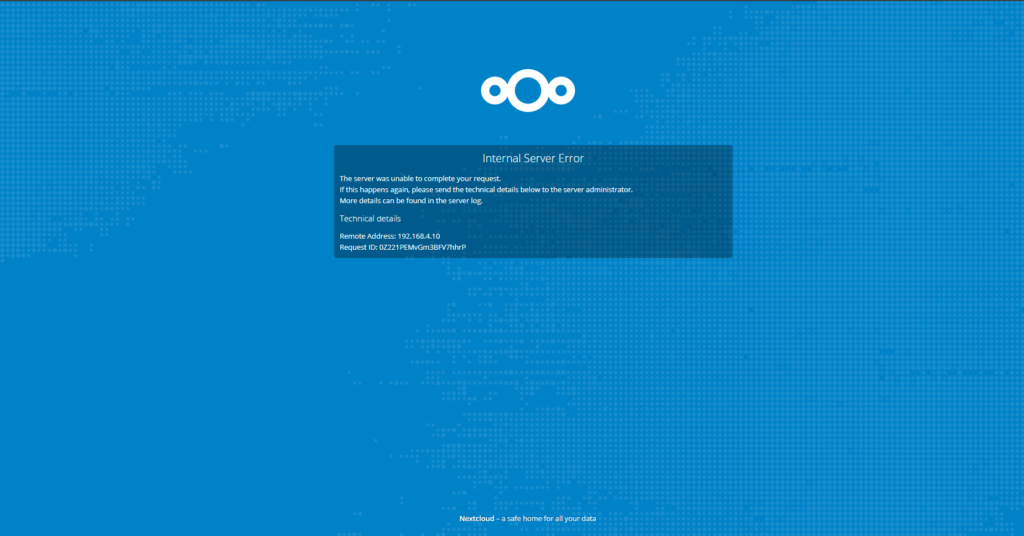
    As a classic HomeLab enjoyer I self-host most of the stuff I use daily. But few days ago while maintaining my Nextcloud instance, I updated Nextcloud & MariaDB to catch up on the latest patches. Unfortunately, my docker install was unable to start properly again and I was greeted by the following error :

    Nextcloud_Error
    The Nextcloud error I encountered

    So I went to check the Nextcloud logs on my docker container with the following command :

    docker logs nextcloud

    I immediately realized that was a database error and not a Nextcloud one, the following messages where present :

    Doctrine\DBAL\Exception\DriverException: An exception occurred while executing a query: SQLSTATE[HY000]: General error: 4047 InnoDB refuses to write tables with ROW_FORMAT=COMPRESSED or KEY_BLOCK_SIZE. Update failed

    From my small knowledge in programming I know one thing, Doctrine is like a link between operations that are queued in the app (Nextcloud in this case) waiting for being written to the database.

    InnoDB refuses to write tables with ROW_FORMAT=COMPRESSED

    If you want a quick fix you can just rollback to a previous version of mariadb (10.5.11) but if you want to know more about this issue, just stick with me for a bit.

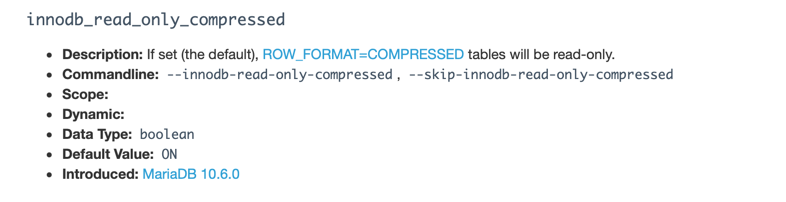
    From MariaDB 10.6.0, tables that are of the COMPRESSED row format are read-only by default, the goal here is to deprecate the feature in the future. By setting the innodb_read_only_compressed 3 variable to OFF it make the tables writable.

    read_only_compressed
    read_only_compressed

    However, this is a workaround rather that a solution. Tables must be migrated. Hopefully they should be migrated automatically by Nextcloud in an incoming update soon. It is wise not to touch the table’s definition in order to not break the (hopefully) incoming Nextcloud migration.


    How to fix it ?

    Standard Install

    • Access you MariaDB server
    • Edit the /etc/my.cnf.d/server.cnf file
    • Find the [mysqld] section
    • Add the following statement “innodb_read_only_compressed=OFF”
    • Restart your SQL service

    Docker Install

    If you are running your app in docker container you can add the command in your docker-compose script to be executed at every startup :

    command: # CLI arguments  - "--innodb_read_only_compressed=OFF"