Tag: NAS

  • Manage temperatures & fans on Linux

    If you are here, you may had problems to manage your fans speed or check your temps on Linux.

    Fortunately there are some tools to help you with that, one of the most known is lm-sensors, it provide a tool for GNU/Linux systems to monitor and handle temperatures, tensions, fan speed & moisture levels.

    The current supported sensors are :

    • ISA hardware monitoring chips.
    • I2C/SMBus hardware monitoring chips.
    • SPI hardware monitoring chips.
    • Hardware monitoring features integrated in Super-I/O chips.
    • Hardware monitoring features integrated in south bridges.
    • Thermal sensors integrated in CPU.
    • Thermal sensors integrated in memory modules.

    Installation & detection

    Proceed to the installation of “lm-sensors”.

    sudo apt install lm-sensors

    Then you can run the sensor detection tool.

    sudo sensors-detect

    The output should look like this, it can vary depending of your hardware.

    sensors-detect version 3.6.0# System: ***# Board: ***# Kernel: ***# Processor: ***This program will help you determine which kernel modules you needto load to use lm_sensors most effectively. It is generally safeand recommended to accept the default answers to all questions,unless you know what you're doing.Some south bridges, CPUs or memory controllers contain embedded sensors.Do you want to scan for them? This is totally safe. (YES/no): Module cpuid loaded successfully.Silicon Integrated Systems SIS5595...                       NoVIA VT82C686 Integrated Sensors...                          NoVIA VT8231 Integrated Sensors...                            NoAMD K8 thermal sensors...                                   NoAMD Family 10h thermal sensors...                           NoAMD Family 11h thermal sensors...                           NoAMD Family 12h and 14h thermal sensors...                   NoAMD Family 15h thermal sensors...                           NoAMD Family 16h thermal sensors...                           NoAMD Family 17h thermal sensors...                           Success!    (driver `k10temp')AMD Family 15h power sensors...                             NoAMD Family 16h power sensors...                             NoHygon Family 18h thermal sensors...                         NoIntel digital thermal sensor...                             NoIntel AMB FB-DIMM thermal sensor...                         NoIntel 5500/5520/X58 thermal sensor...                       NoVIA C7 thermal sensor...                                    NoVIA Nano thermal sensor...                                  No

    Here the lm-sensors software is trying to guess what kind of CPU you have to find which sensors are present, some prompts will then appears, just go for the recommended values and reboot.

    If you have a graphics card, your GPU sensors should also be recognized.

    To check every detected sensors, just type the following command.

    sensors

    If you are running on a laptop, this install can provide more information to your fan controllers and in some case, resolve fan speed & temperatures issues.


    GUI for Temperature & Fan speed visualisation

    You can use psensor to get a quick visualisation of your temps and fan speed after executing the lm-sensors tool

    sudo apt-get install psensor
  • Faster file transfer on Windows | Robocopy

    Faster file transfer on Windows | Robocopy

    In Windows, when you want to transfer files from a place to another you usually use the standard Copy/Paste/Move process, but it comes with a downside, it only use one thread on your system which is insane on an recent operating system, now mainly used on multi-threaded systems.

    Depending on your system, the read/write performance of your disk can be the main bottleneck for file transfer speed, but if you are using a fast SSD/HDD, the number of used cores can be the bottleneck of your file transfer speed.

    To prevent this, you can use a Microsoft command line utility called “Robocopy” for “Robust File Copy” with a special option for Multi-Threading.

    This tool is available since Windows Server 2012 and on Windows 10 and above.

    Loading...
    Photo by Mike van den Bos / Unsplash

    How to use the multi-threaded option in Robocopy


    1. Open the Command Prompt (CMD) as an administrator
    2. Use the following command to use the multithreaded copy option
    robocopy C:\Source D:\Source /MT:NUMBER_OF_THREADS

    Copy in multithreaded mode

    Robocopy command parameters

    Full original list can be found on the original Microsoft documentation

    • /S — Copy subdirectories, but not empty ones.
    • /E — Copy Subdirectories, including empty ones.
    • /Z — Copy files in restartable mode.
    • /ZB — Uses restartable mode. If access is denied, use backup mode.
    • /TBD — Wait for share names To Be Defined (retry error 67).
    • /NP — No Progress – don’t display percentage copied.
    • /V — Produce verbose output, showing skipped files.
    • /compress — Ask for network compression during transfer, if needed.
    • /MT:n Do multi-threaded copies with n threads (default is 8).

    The default number of used threads with the MT option will be 8, Robocopy will try to copy eight files simultaneously by default. However, Robocopy supports from 1 to 128 threads.

    Note that depending on your setup, you may not notice improvements on your copy process. But it’s usually way more efficient when moving a large amount of files.

  • Install / Recover Iomega ix4-200d firmware

    Install / Recover Iomega ix4-200d firmware

    You may have accidentally erased your whole NAS drives or just been a victim of a software bug, but for a  reason or another your Iomega NAS may have lost his firmware.

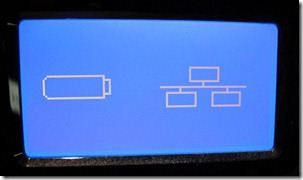
    Front screen error
    IX-Front-Screen-Error

    On theses devices, the firmware is located on the installed drives, not in an integrated flash memory on the device, so if you lose your drives data, you may as well lose the OS.

    This product being in EOL (End Of Lifecycle) it’s very difficult to find resources about how to install the firmware again, plus theses devices were shipped with the drives and firmware installed.

    From what I’ve found online, you have to reach to Lenovo directly to get a recovery software/solution for the NAS, but there is also several other solutions.

    Warning : This is going to recover your Iomega device in working condition, this will not recover your drives data. This method also seems to not work for everyone so be advised.

    First we need some tools and firmware to recover the NAS :

    • Lenovo Iomega ix4-200d (Cloud or non cloud version)
    • Two base hard drives to install the firmware on
    • FAT 32 Formatted USB Drive
    • The needed backup files (Files and mirrors linked)

    Rodolfo & Braulio patched backup files

    Older firmware backup : Mirror 1Mirror 2

    First we need to prepare the drives, but with the recent updates, drives now needs to be initialised in GPT for larger capacity support, you also need to wipe them completely to erase any older partition data. To do that you can use your disk manager on MacOs, Windows and Linux.

    Method 1 : Classic installation

    Prepare your NAS, Remove every drives except the drives in the slot 1 and 2, they will be the targeted disks for the firmware install. Two disk are recommended to rebuild the raid group directly, but if the installation fails, you can try again with only one.

    Make the bootable recovery USB, you first have to format your USB key to FAT 32, then extract the ix4-200d-recovery file to the USB support.

    Install the firmware, Then, plug your USB key to the back, on the top USB port of the NAS. While pressing the NAS reset button, power on the NAS, keep holding for 60/70 seconds. The device will reboot. After the reboot logo showed up, you can release the reset button, watch for the hard drive blue activity light to see if you succeed.

    Finish the installation, Wait for the firmware to do his business, it should take about 5 to 10 minutes, the unit should turn off and back up again, If it’s not turning on, start it manually. Keep the USB plugged until the usual interface shows up. Then shut it down, remove the USB drive and start it again !

    You now should have a working NAS again ! Some updates may be available in the update tab as the firmware still not the most recent.

    Method 2 : Physical installation

    Follow the instructions of the instructions.txt file from the downloaded files (Specific hardware needed)

    Mirror 1 Mirror 2

    Special thanks to Rodolfo & Braulio for keeping upgrading this guide with their new patched firmware !