If you installed a new disk to your Windows computer and want to move the boot partition to this new one, you may want to stick with the following instructions.
Start the command prompt cmd.exe as administrator
Type and start diskpart
Find the disk you want to use with list disk
Select that disk with select disk
List partitions with list partition
Select that partition with select partition
Shrink partition with (size in MB) shrink desired=200
Create new EFI partition with create partition efi size=200
Format partition as FAT32 with format quick fs=fat32
Assign letter to that new partition with assign letter=x (Can be a free letter of your choice)
exit
Now to install boot files one can use the following command :
bcdboot C:\Windows /s X:
Make sure to use the proper devices names for the previous command, C:\ must be your current Windows install and X: your new disk.
When you are done with the previous steps, please make sure to check the boot order in your BIOS/UEFI settings and select the new device first in the boot sequence.
Crowdsec is a relatively new tool in the security world, it’s an Intrusion Prevention Systems (IPS), it allow the detection of threats and the adding of necessary firewall rules if needed.
Crowdsec differs from other IPS because of the collaboration aspect. It also offer an on-premise or cloud dashboard.
You may have heard, or used Fail2ban, it basically do the same things, but with more functionalities.
Pros
Open-Source
Collaborative security
Decoupled detection and action software
Ease of use
IPv6 Ready
GDPR Compliant
Easy to install & setup
Large support for many services
Cons
Not easily understandable
Can be hard to setup depending on your setup
Type of recognized threats
Threats recognized by Crowdsec
How does it works ?
First it gather the logs and parse them from any source, it also applies scenarios to identify cyber-threats, then rules are set depending of the desired behavior.
Crowdsec has two main components, the scenarios and the bouncers. The scenarios detect the type of threat and the bouncers make an action to ban/correct it. You can also choose to only use one of the two parts.
Bouncers are used to “apply” decisions, from threats detected by the Crowdsec software.
Before installing the basic bouncer that will act on your firewall rules, you need to check if your system is using iptable or nftableto determine where your system should act to prevent the attacks.
Then, you can use the basic firewall bouncer. It will check for the most common cases of attacks on your server (Brute-force, Slow brute-force, …).
apt install crowdsec-firewall-bouncer-iptables
Install the Linux firewall bouncer
Then, depending of the service(s) you are running on your server, you can use one more other bouncers.
In Windows, when you want to transfer files from a place to another you usually use the standard Copy/Paste/Move process, but it comes with a downside, it only use one thread on your system which is insane on an recent operating system, now mainly used on multi-threaded systems.
Depending on your system, the read/write performance of your disk can be the main bottleneck for file transfer speed, but if you are using a fast SSD/HDD, the number of used cores can be the bottleneck of your file transfer speed.
To prevent this, you can use a Microsoft command line utility called “Robocopy” for “Robust File Copy” with a special option for Multi-Threading.
This tool is available since Windows Server 2012 and on Windows 10 and above.
/ZB — Uses restartable mode. If access is denied, use backup mode.
/TBD — Wait for share names To Be Defined (retry error 67).
/NP — No Progress – don’t display percentage copied.
/V — Produce verbose output, showing skipped files.
/compress — Ask for network compression during transfer, if needed.
/MT:n — Do multi-threaded copies with n threads (default is 8).
The default number of used threads with the MT option will be 8, Robocopy will try to copy eight files simultaneously by default. However, Robocopy supports from 1 to 128 threads.
Note that depending on your setup, you may not notice improvements on your copy process. But it’s usually way more efficient when moving a large amount of files.
In this article we are gonna setup a WSUS server to manage & accelerate the update process of Windows based computers.
What is a WSUS Server ?
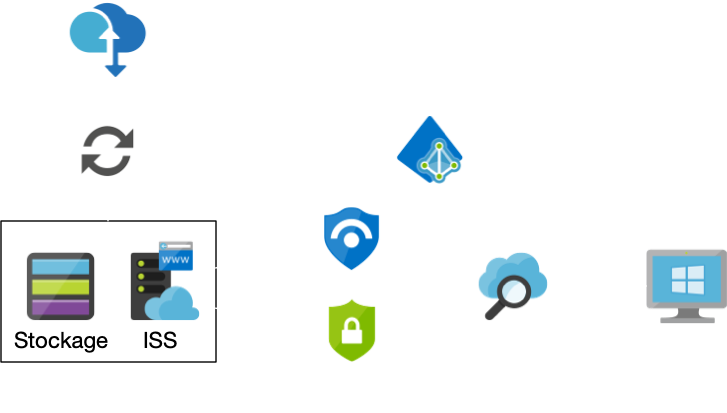
WSUS stand for “Windows Server Update Services”, it allows the centralization of Windows updates for an organization by downloading every selected updates from Microsoft on a local server, to allow a better distribution on local Windows clients when needed. It acts like a “Cache” service for Windows updates.
WSUS Process / Cloudkid
How does the WSUS service works ?
First the service needs to fetch the selected updates from Microsoft servers on a local storage support. Then the service makes itself available as a web server on ports 8530 HTTP & 8531 HTTPS to distribute the updates to Windows clients.
This service will also permit the selection of targeted clients in different groups to allow a munch better control of updates for the endpoints. The same goes for downloaded updates, it’s possible to choose which updates want to be downloaded or not for bandwidth and storage concerns. Some specifics updates & languages packs could be specified.
Setup
Prerequisites :
Windows Server 2012 or greater
Solid Internet Speed
At least 250 Gb recommended
Now, let’s take the dive in the installation & the setup of the service.
I. Service installation
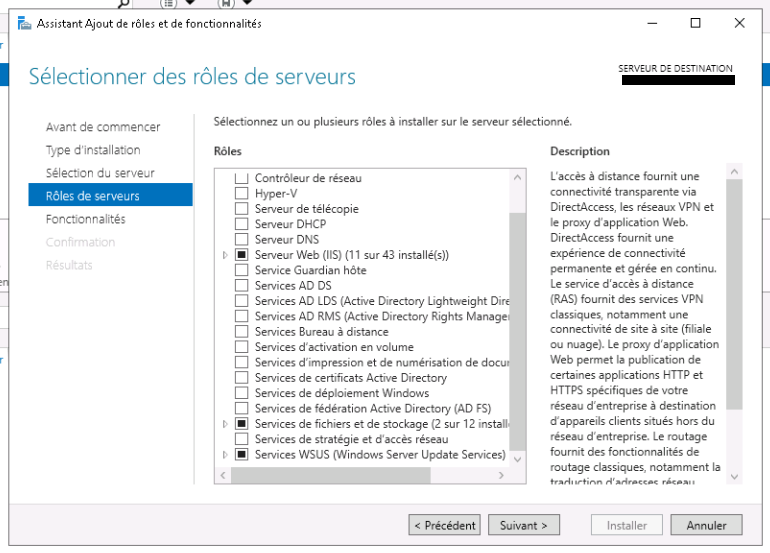
First things first, let’s install the service, on your Windows server, launch your Server Manager and go to : Add roles and functionalities > Install based on a role or functionality and tick the “WSUS Services” box. By ticking this case other needed components will be automatically installed too, our web server service (IIS) to distribute updates for instance.
WSUS Service installation / Cloudkid
When the installation ends, a restart could be necessary. A prompt for post installation will then show up as a notification, click on it and follow the instructions. See the informations below to insure that you do not miss any details.
II. Service configuration
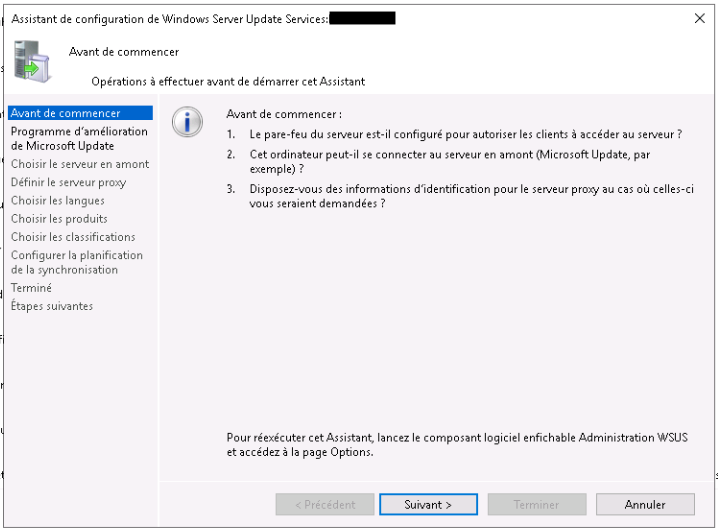
Service-Setup
Before starting : In this section, some sanity checks are asked to insure the good working condition of your service. Read the prompts carefully and adapt your topology.
Improvement program : Basically telemetry, if you want information about your installs to be sent to Microsoft to improves their services, I recommend turning this off.
Choose a download server : Here we can define the location from where we want to fetch our updates, an other WSUS server for instance or directly from Microsoft. For our first install, we will choose “From the internet” (Default).
Proxy Server : If our organization use a proxy server and our WSUS server should get is traffic routed by this proxy, we need to specify that here.
Choose the options :
Here, we can choose what do we want to keep in cache for the updates, for that there is 3 main categories.
Languages
Products
Classifications
Select the categories carefully, each one can use a lot of storage and/or bandwidth for the initial download.
When you are done with the assistant, a first big Sync will start, if it’s not the case double check your settings or enable it manually. The server will sync is local storage with the remote Microsoft database.
III. Update management
The updates have to be manually approved by the administrator to be deployed on clients endpoints but it is also possible to define auto approval rules depending on several parameters.
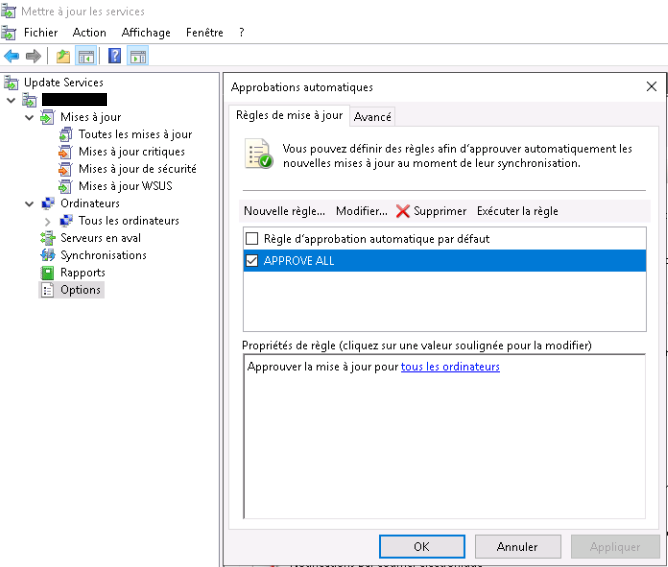
To define a rule to auto approve every update we will head to the side menu Options > Automatic approbations > New rule we could the set the following rule :
Approve updates for every computer
Setup
Creating groups can also permit a munch granular selection for updates. You can then deploy updates on a per group basis.
IIV. Client configuration
The service is now accessible from the network, to check that, we can go to the web page from which clients computers are gonna download updates from our WSUS. Open your browser and type ServerIP:8530 or ServerIP:8531 depending of your config.
If you get a white blank page as an answer, then your service is accessible, if you receive an HTTP Error code, double check your setting or re-run the WSUS configuration assistant.
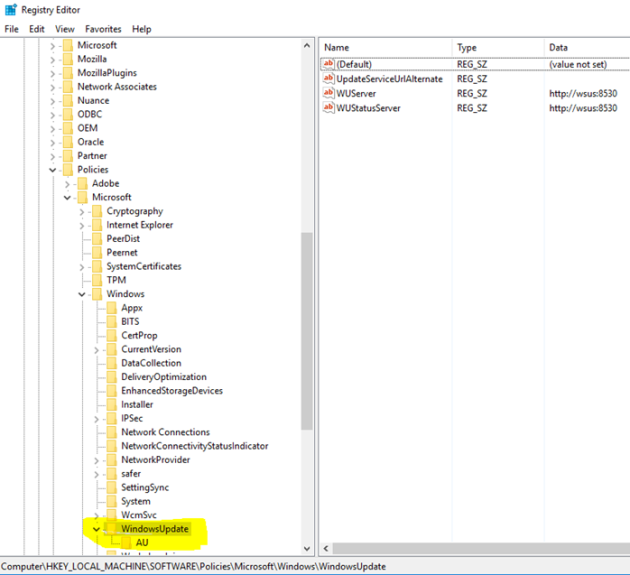
To add clients, we need to specify them where to look for new updates. To achieve that we need to edit some values in the registry. Here we can define some parameters like the frequency of update checking, the WSUS server location (IP & Port or DNS Name) and more.
Registry keys location & value / Nideesh Solutions
Refer to the picture for client configuration
The client configuration can be really hard to configure for a huge amount of clients, for that kind of setup a GPO (Group Policy Object) is strongly advised for large-scale deployment.
IV. Client configuration (GPO)
To deploy our setup in an organization at large scale, we are gonna use a GPO. To test it, let’s create an OU (Organizational unit) first, i’m gonna call mine “WSUS”.
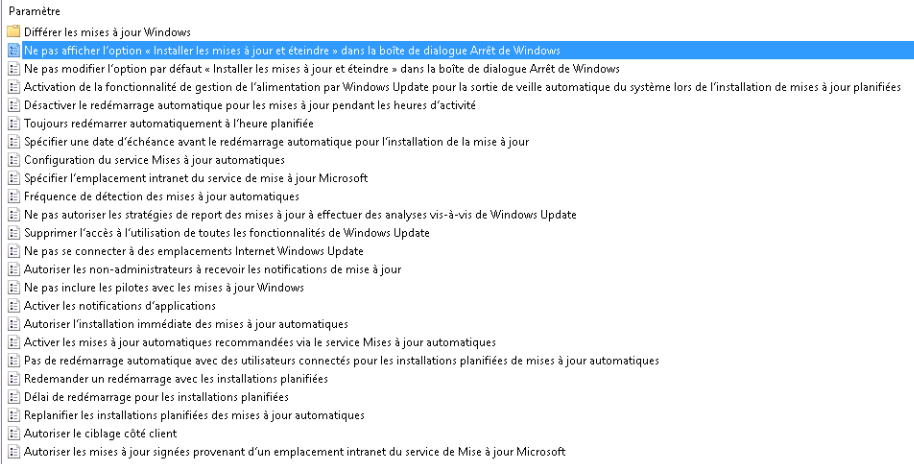
Then we need to use the settings located in Strategies > Administration templates > Windows components > Windows update
Here you can edit every possible settings for the windows clients.
Windows Update GPO Options / Cloudkid
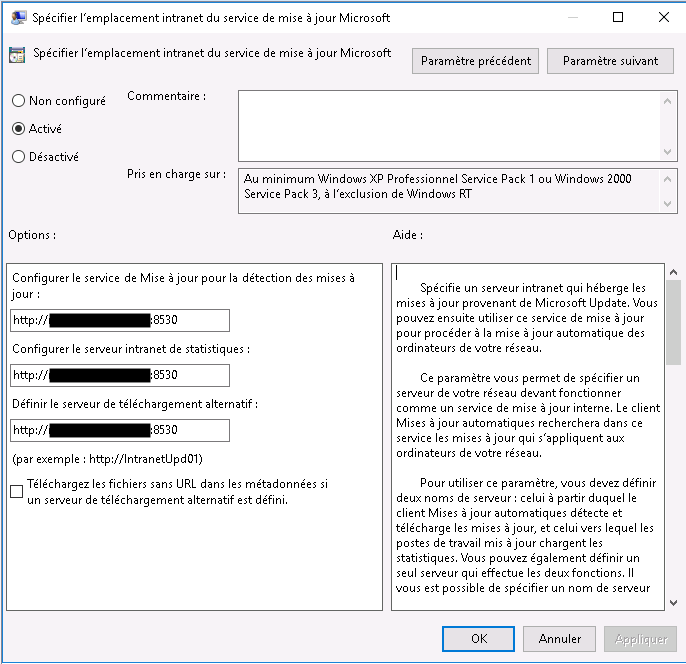
Only one option is mandatory to establish the connection between the service and the client : “Specify the intranet location of the Microsoft update service”.
WSUS
To insure that the rule is applied you can type the following command in the client CMD.
gpupdate /force
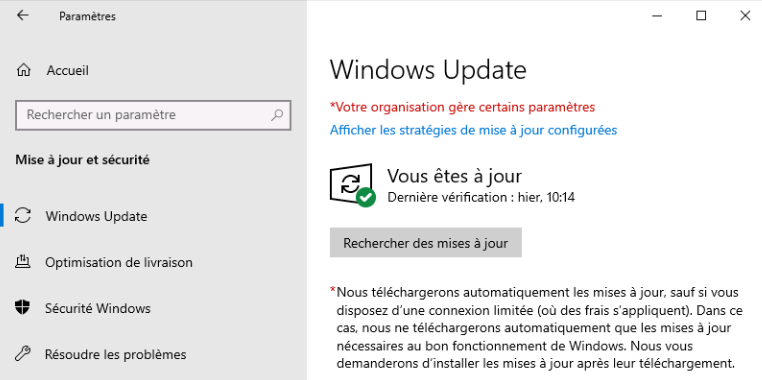
Let’s get back to the Windows update setting tab on our client and check if a red message is present. If it’s the case your GPO as been applied and your windows update settings too !
*Your organization manage some parameters
GPO Applied / Cloudkid
Your updates will now be applied for all of your clients with your selected parameters ! Hope this post was helpful.